
Automatic printing allows your WooCommerce store to generate invoices, packing slips, or receipts as soon as a new order arrives. This is extremely valuable for restaurants, retail shops, warehouses, and fulfillment centers where every second counts.
PrintNode is one of the most reliable tools for making this possible. It connects your WooCommerce site to any printer through a small client installed on your computer. This guide explains everything you need, how to set it up, how to use WooCommerce webhooks for printing, and how to print invoices automatically. At the end, you will learn how the Hippoo WooCommerce mobile app provides a simpler alternative for mobile users.
What Is PrintNode and How It Works
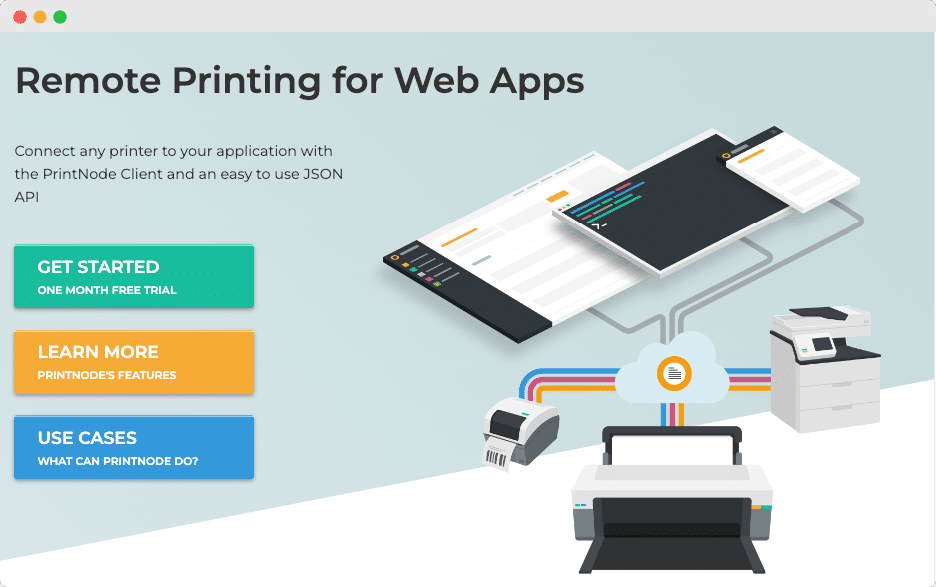
PrintNode acts as a bridge between WooCommerce and your printer. When a new order is placed, WooCommerce triggers a print event, which is delivered to PrintNode using their API. PrintNode then sends the print job to any online printer connected to your PrintNode client.
Here is a visual example of the PrintNode dashboard and client:

The system works as long as your computer and printer stay online, which makes it highly reliable for continuous printing workflows.
Requirements
You need only a few things to get started:
- A PrintNode account
- The PrintNode client installed on a computer
- A printer connected to that computer (USB, WiFi, Ethernet, or Bluetooth)
- A way for WooCommerce to trigger printing
You can use a PrintNode plugin or create your own webhook based integration. Both options are covered below.
Setting Up PrintNode
Start by creating an account on the PrintNode website. After logging in, download the PrintNode client for your operating system and install it. Once the client is running, it will automatically detect your connected printers.
You will also need an API key, which you can generate inside your account. This key allows WooCommerce to authenticate with PrintNode and send print jobs.
Your PrintNode dashboard will display all online printers:
When this list looks correct, your printer is ready for automation.
Connecting WooCommerce to PrintNode
There are two main ways to connect WooCommerce to PrintNode.
1. Using a PrintNode WooCommerce Plugin
Many store owners prefer this method because it requires no coding. Plugins typically allow you to select which printer to use, what documents to generate, and when to print.
2. Using WooCommerce Webhooks
Developers often choose this method for full customization. WooCommerce sends order data to an external URL, which processes the information and forwards it to PrintNode.
Below is how to set up the webhook method.
Setting Up a Webhook in WooCommerce
Open your WooCommerce settings, navigate to the Advanced tab, then select Webhooks. Add a new webhook and configure it as follows:
- Status: Active
- Topic: Order Created (or Order Updated)
- Delivery URL: Your webhook handler endpoint
This allows WooCommerce to send order details automatically when an order is placed.
Here is what the WooCommerce webhook settings screen looks like:
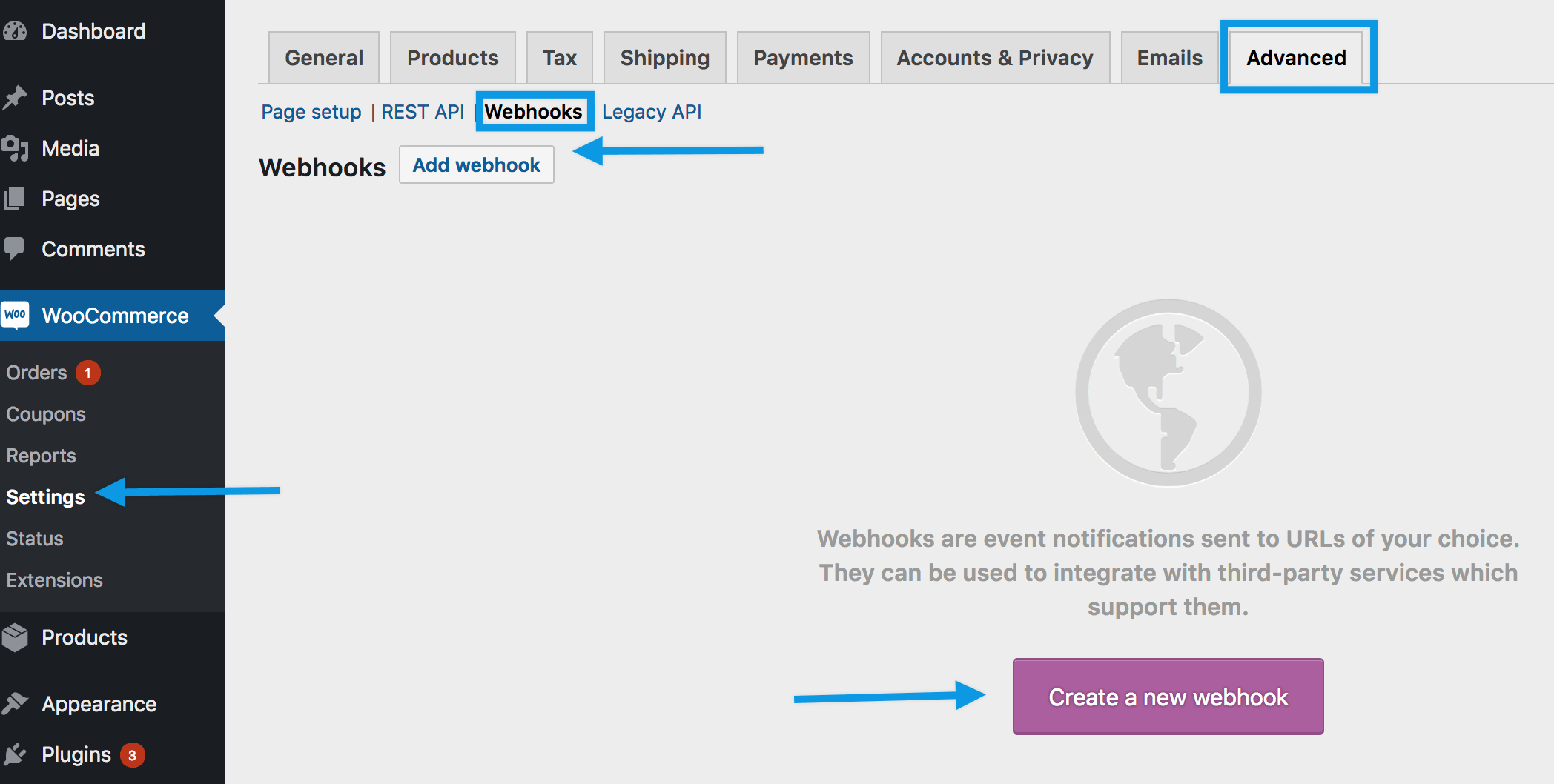
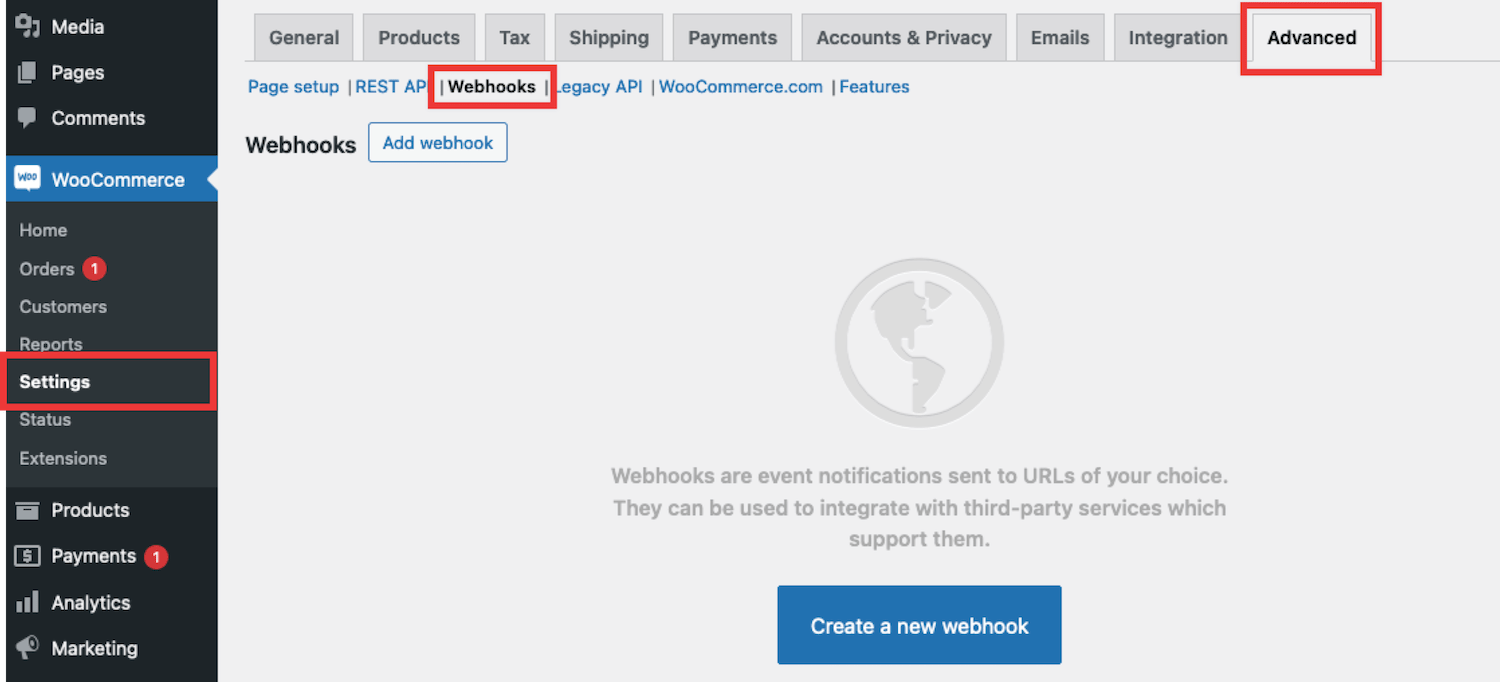
After saving the webhook, WooCommerce immediately begins sending order information to your chosen URL.
Forwarding WooCommerce Data to PrintNode
Your webhook handler receives the order information in JSON format. The script should parse the data, generate an invoice file, and send it to PrintNode’s print job endpoint using the API key.
A basic flow looks like this:
- WooCommerce sends order JSON to your webhook
- Your script generates a PDF invoice
- The PDF is forwarded to PrintNode
- PrintNode prints it through your selected printer
PrintNode accepts several print formats, but PDF is the most common choice because it ensures consistent layout.
How To Print Invoices Automatically
Once your integration is complete, every new WooCommerce order can generate an invoice automatically. Most store owners use PDF templates generated through libraries or plugins. When the PDF is passed to PrintNode, the printer begins printing immediately.
Plugins that support PrintNode often include built in invoice templates, which makes this even easier. Here is an example of WooCommerce invoice layouts:
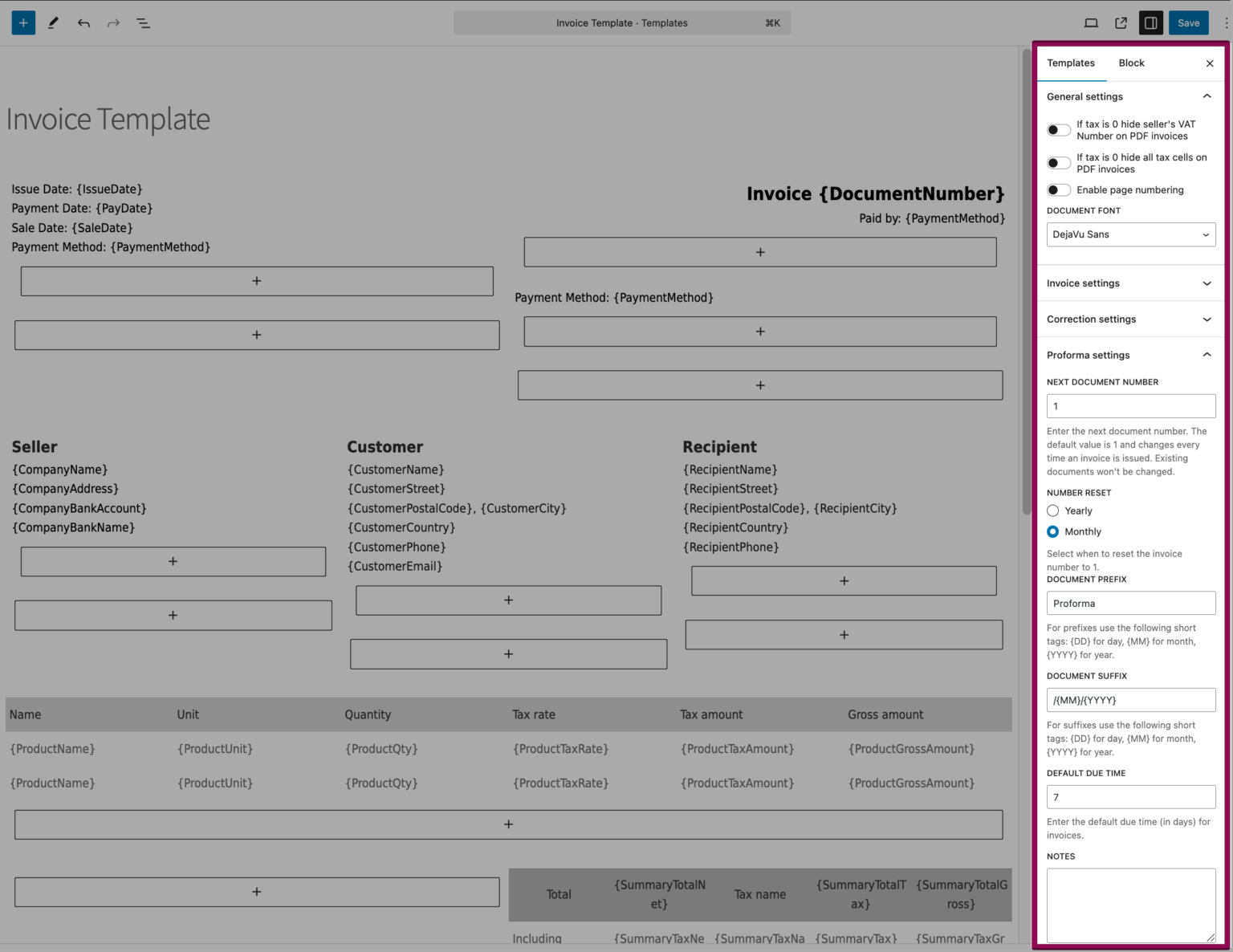
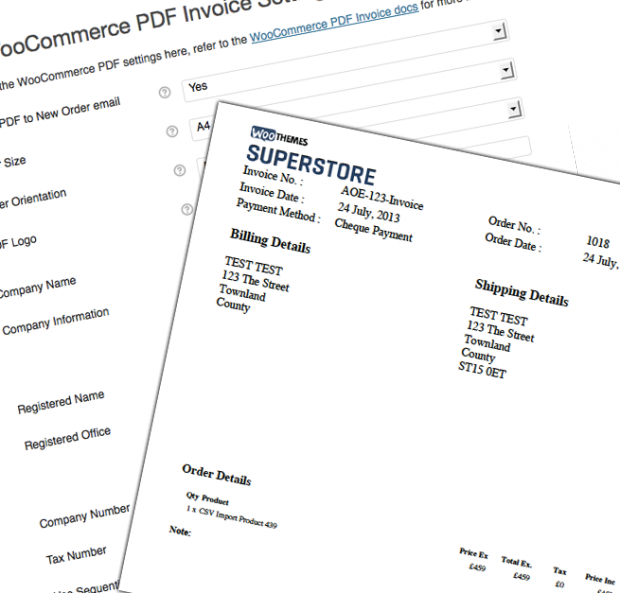
Automatic invoice printing helps speed up order preparation and reduces human error.
Limitations of PrintNode
PrintNode is powerful, but it comes with a few limitations you should understand:
- The computer running the PrintNode client must stay online
- Internet connectivity is required because PrintNode is cloud based
- PrintNode does not generate invoice templates, so PDF creation is up to you
- Large or numerous print jobs may cause short delays
- It requires a monthly subscription
Despite these limitations, PrintNode remains one of the fastest and most stable solutions for automatic printing.
Tips for Smooth Printing
You will have a better experience if you avoid letting your computer sleep, use Ethernet when possible, and choose fast thermal printers for order receipts. Testing your webhook through tools like Postman helps verify the setup before going live.
Alternative: Hippoo WooCommerce Mobile App for Easy Invoice Printing
If you want to avoid PrintNode’s technical setup and prefer an easier mobile based solution, the Hippoo WooCommerce app is an excellent alternative.
Hippoo lets you print invoices directly from your phone, as long as your printer supports WiFi. You can customize invoice design, edit receipt layout, and manage your entire WooCommerce store through the app. There is no need for webhooks, desktop clients, or API configuration.
Here is how mobile printing can work with Hippoo:

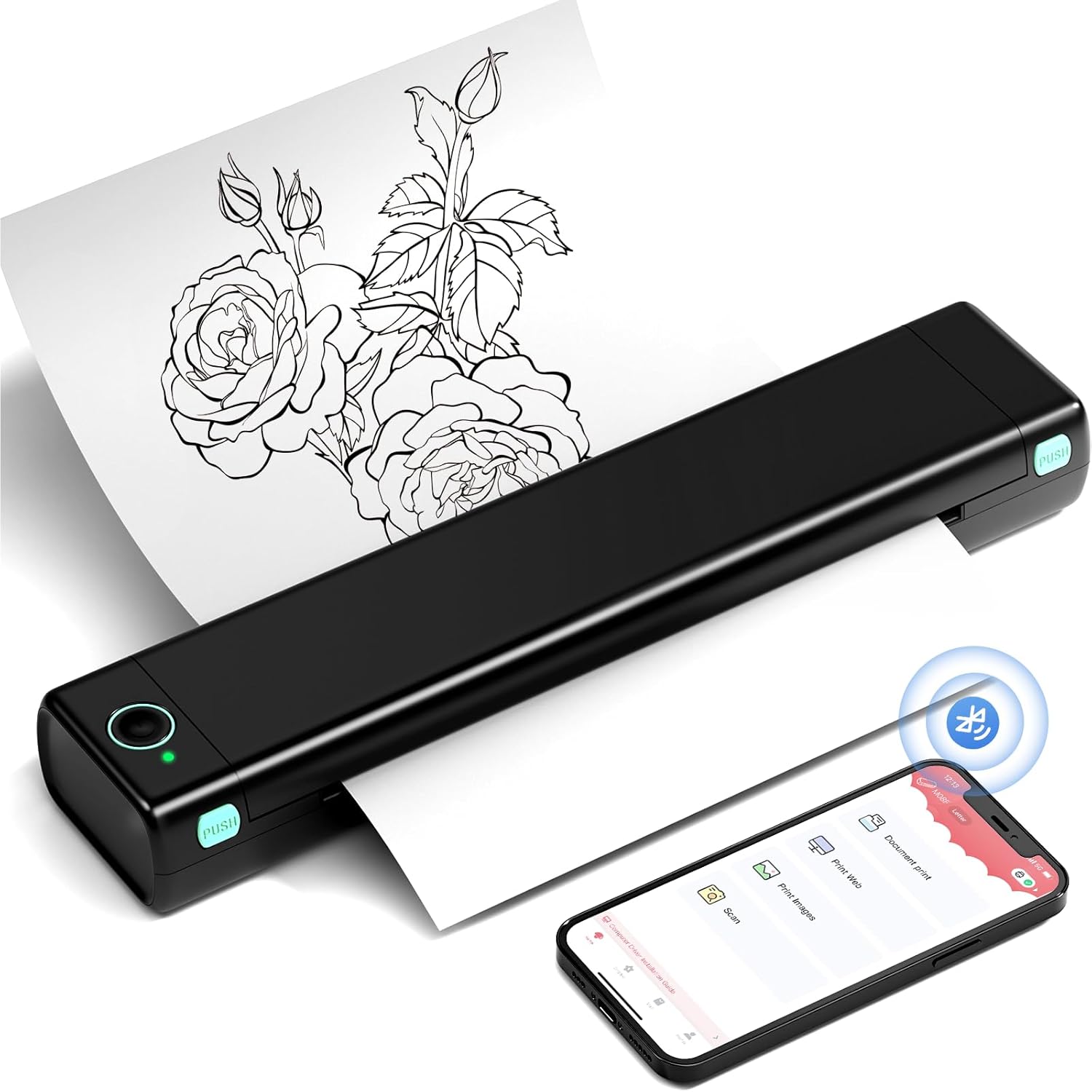
This setup is ideal for small shops, restaurants, pop up stores, or sellers who prefer flexibility without technical overhead.
Summary
PrintNode enables full automation of WooCommerce printing by connecting your store to any printer through a small desktop client. By setting up a webhook or using a plugin, you can print invoices and receipts instantly when new orders are placed. Although PrintNode requires some configuration and a constant online connection, it offers a reliable printing workflow.
For users who prefer a simpler mobile experience, the Hippoo WooCommerce app allows invoice and receipt printing directly from a smartphone, complete with layout customization and WiFi printer support.