
Introducing Hippoo AI Product Reader and How to Generate API Key
The Hippoo AI Product Reader automatically generates professional, SEO-optimized product descriptions directly from your product photos using OpenAI’s ChatGPT API.
By combining image recognition with natural language generation, Hippoo transforms product photos into detailed and ready-to-use product descriptions within seconds.
This article explains how to set up and use the feature, including how to generate an API key, connect it to Hippoo, track usage, understand token consumption, write effective prompts, and configure token limits correctly.
1. About Hippoo AI Product Reader
The Hippoo AI Product Reader analyzes product photos and converts them into complete descriptions that include names, features, and specifications.
It helps online stores, marketers, and content creators save time and produce high-quality, consistent product text.
The process is simple:
- Upload up to three product photos.
- The system extracts visual and text information.
- Hippoo’s AI generates a description automatically using your saved prompts and settings.
2. How to Generate Your OpenAI API Key
Hippoo AI Product Reader connects to OpenAI’s API using your personal API key.
You need an OpenAI account with billing enabled to create and use this key.
Steps to generate the API key
- Go to https://platform.openai.com.
- Sign in to your account.
- Navigate to Dashboard → API Keys.
- Click Create new secret key.
- Copy the generated key. It will look like:
sk-proj-xxxxxxxxxxxxxxxxxxxxxxxxxxxxYou will only see this key once, so store it securely in a password manager or another safe location.
Adding the API key to Hippoo
- Open the Hippoo Settings page in the WooCommerce dashboard, and navigate to Hippoo AI tab.
- Paste your API key into the API Key field.
- Click Save Settings.
- Click Test Connection to confirm the setup.
Once saved, Hippoo securely stores your key and uses it for all OpenAI requests.
3. Checking API Usage and Token Consumption
You can monitor your API usage and track token costs in the OpenAI dashboard.
Checking usage
- Go to https://platform.openai.com/usage.
- You will see:
- Daily token usage
- Cost breakdown by model
- Billing cycle and usage limits
Understanding token usage
OpenAI charges per token, where each token represents a few characters of text.
When Hippoo AI Product Reader generates content, token usage depends on:
- The number of product photos uploaded
- The complexity of the image content
- The length of your prompts
- The size of the generated text
Approximate examples:
- One short product description: 150–300 tokens (about $0.002–$0.006 USD)
- Three detailed product photos: 600–1,000 tokens (about $0.01–$0.02 USD)
- Long SEO description: 1,000–1,500 tokens (about $0.02–$0.03 USD)
Prices can vary depending on the selected model and OpenAI pricing updates.
4. Setting Token Limits in Hippoo
In the Hippoo Settings page, you can define a maximum token limit for each request.
This limit helps you control cost and ensure that long prompts or very detailed content do not use excessive tokens.
Example:
- If you set the limit to 500 tokens, and a request needs 600 tokens, Hippoo will stop the request and return an error message.
- The error indicates that the content exceeded the allowed token limit.
- You can then reduce the prompt length, select a smaller model, or increase the token limit in the settings.
Tip:
Start with moderate limits (for example, 400–600 tokens per request) and adjust based on your use case.
5. Writing Effective Prompts
Hippoo AI Product Reader uses two types of prompts that you can configure in the settings.
System Prompt
Defines the AI’s behavior and writing style.
Examples:
- “You are a professional e-commerce writer who creates clear, concise product descriptions in spanish.”
- “You are an expert marketing writer who converts product details into engaging content.”
Best practices:
- Define tone and audience and language (for example, professional or friendly or specific language).
- Be specific about expected output type (short, detailed, creative).
Description Prompt
Instructs the AI what to write and what details to include.
Examples:
- “Write a 100-word description using visible details from the product photos. Include material, color, and purpose.”
- “Generate an SEO-friendly product paragraph with features and benefits.”
Tips:
- Ask for a specific structure, such as headline and paragraph.
- Include writing style direction like “informative and persuasive.”
- Avoid vague or repetitive phrases.
6. Taking Product Photos for the AI Reader
Clear, detailed photos are essential for accurate descriptions.
Hippoo supports up to three images per product.
Recommended photo setup:
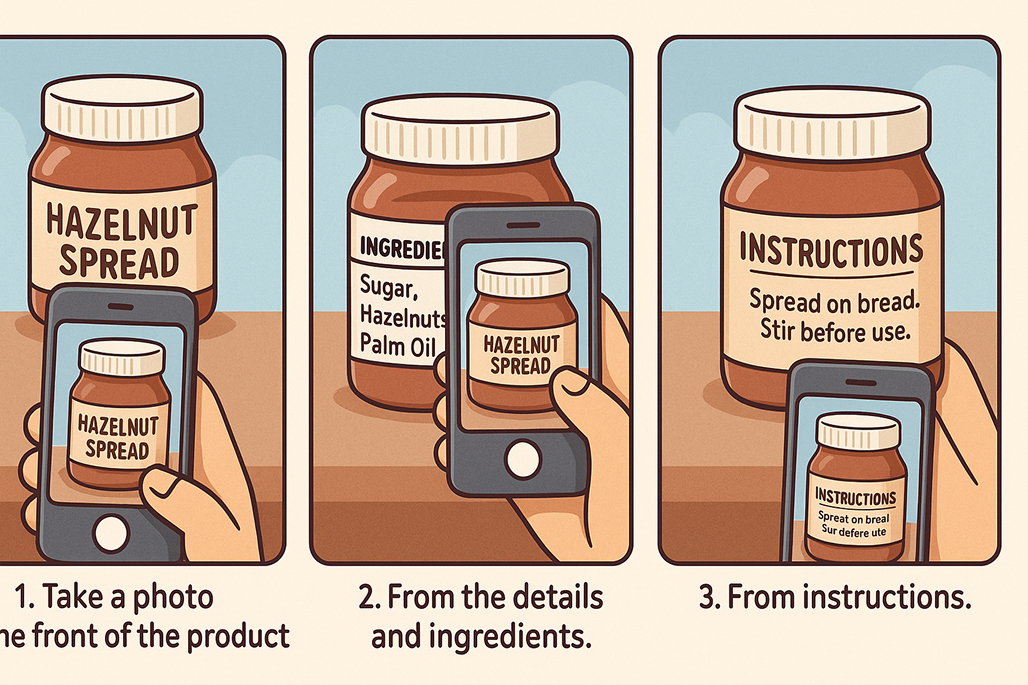
- Photo 1: Full front or packaging image.
- Photo 2: Close-up of the label or product name.
- Photo 3: Ingredients, specifications, or detailed view (if available).
Photo guidelines:
- Use bright, even lighting and a neutral background.
- Ensure text is clear and readable.
- Avoid reflections and blur.
- Keep a consistent angle and framing.
The AI will analyze the uploaded images, extract product details, and combine them into a cohesive written description.
7. Using Hippoo AI Product Reader in the Hippoo App
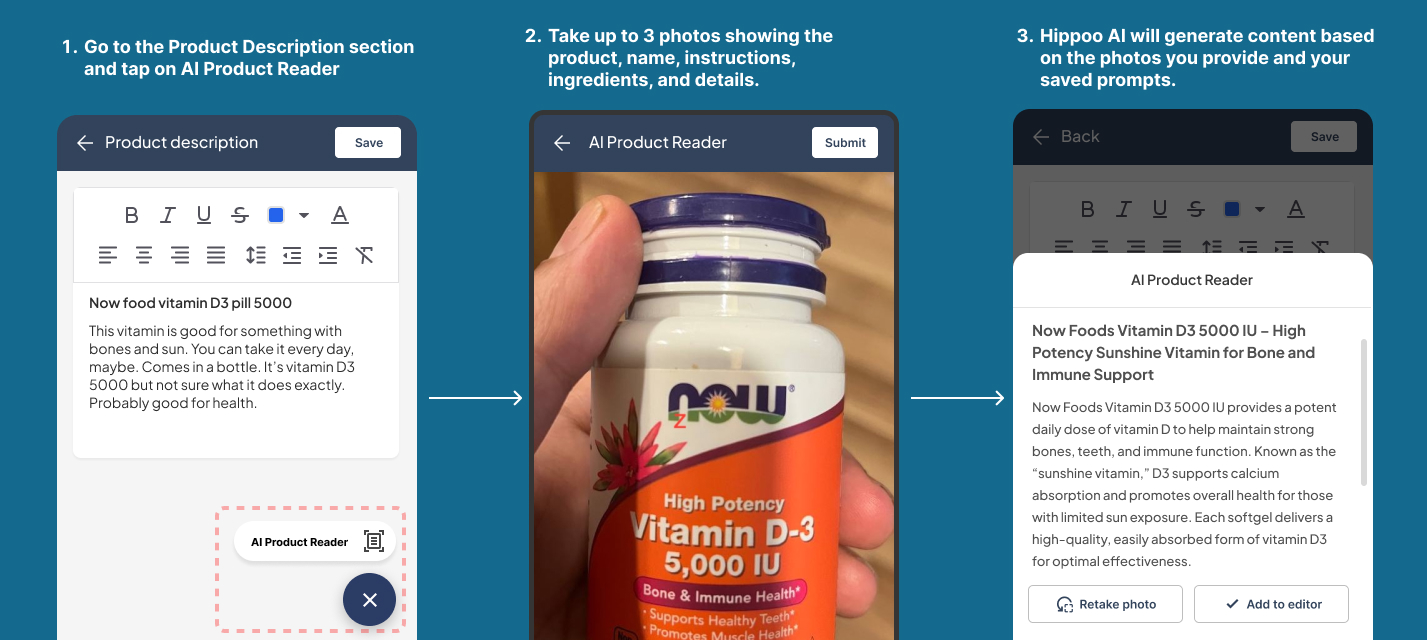
After you have updated your settings, added your API key, and successfully tested the connection in Hippoo, you can use the AI Product Reader directly from within the Hippoo application.
Steps
- Open the Hippoo App.
- Add a new product or edit an existing one.
- Go to the Description section of the product form.
- Click on AI Product Reader to open the camera interface.
- When prompted, allow the application to access your camera. This permission is required to take product photos.
- Capture or select product photos directly from your device.
- The AI Product Reader will upload and analyze the photos to extract product details.
- The generated product description will automatically appear in the description field once the analysis is complete.
- Review or edit the generated description before saving the product.
Important Notes
A stable internet connection is recommended for faster uploads and accurate AI analysis.
Make sure your API key and other settings are correctly configured before using the AI Product Reader.
If the request exceeds your maximum token limit (set in Hippoo Settings), the system will return an error. You can reduce the prompt size or increase the token limit.
The photos you take through the AI Product Reader are not saved in your media library.
They are uploaded temporarily for analysis and automatically deleted after the description is generated.
Ensure your device camera has permission enabled for the Hippoo app before you start.
| Step | Action | Description |
|---|---|---|
| 1 | Create your OpenAI API key | Generate it at platform.openai.com |
| 2 | Add it to Hippoo | Paste it under Settings → API Key |
| 3 | Set a token limit | Prevents excessive usage per request |
| 4 | Test the connection | Confirms setup is successful |
| 5 | Upload up to three photos | Include product, label, and details |
| 6 | Generate the description | AI Product Reader analyzes and writes |
| 7 | Monitor usage | Track tokens and costs on OpenAI dashboard |
9. Best Practices and Tips
- Use short, clear prompts for precise output.
- Keep product photos clean and well-lit.
- Set realistic token limits to avoid errors.
- Include product details such as ingredients and materials in photos.
- Experiment with different GPT models to balance quality and cost.
- Regularly check your OpenAI usage dashboard and adjust token limits as needed.
- Review generated text for SEO, clarity, and tone before publishing.